How to edit a quinceañera slideshow template in Canva, step by step
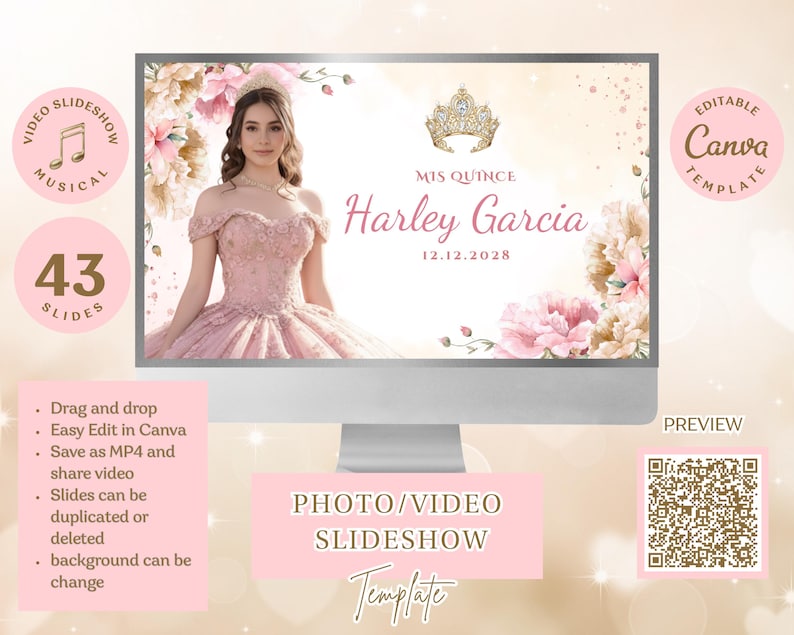
A slideshow template does the design work for you: the layouts, transitions and lettering are already there. Your job is to bring the story. Here is how to go from download to a finished video for the party, in Canva on a laptop or your phone.
Before you start: gather the photos
Collect everything in one folder first. It makes the editing far faster.
- Baby and childhood photos. Scan prints with your phone in good daylight, holding it straight above the photo to avoid glare.
- Family moments. Holidays, birthdays, trips, grandparents.
- Friends and her court. Rehearsals and getting ready make great clips.
- Recent portraits. The professional quince photos, if you have them in time.
Put the files in rough date order and name the best ones. Fifty to eighty photos is a comfortable amount for a five to ten minute slideshow.
Step 1: open your copy of the template
After your Etsy order, open the template link from your download. Canva makes a copy in your own account, so you can always come back to it. If you do not have a Canva account yet, you will be asked to create one.
Step 2: change the names and dates
Click any text box to type over it. Change her name, the date and any phrase, in English, Spanish or both. If a name is longer than the sample, reduce the font size slightly rather than letting it run off the frame.
Step 3: add your photos and videos
Open Uploads on the left and upload your folder. Then drag each photo onto a photo frame in the template: it snaps into place and crops to fit. Double-click a photo to move or zoom it inside the frame so faces are not cut off.
Video clips work the same way. Keep clips short, five to eight seconds each, so the slideshow keeps moving.
Step 4: add pages or remove them
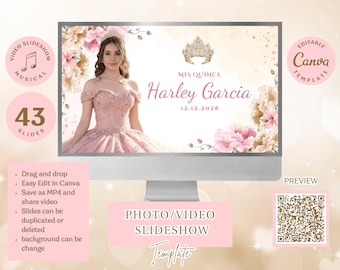
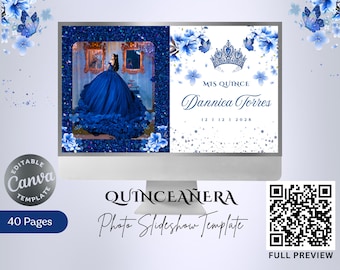
Need more slides? Duplicate a page you like and swap the photos. Too many? Delete the extras. Keep a rhythm: a few single-photo slides, then a collage, then a single photo again.
Step 5: choose the music
Upload your own song in Uploads, or pick one from Canva's audio library. Drag it onto the timeline below the pages, then drag its edges to trim it. If you use two songs, put a quiet moment between them where the baby photos end and the recent ones begin.
Check the length of each page so the slideshow ends with the music. You can change how long each page plays by dragging the page edge on the timeline.
Step 6: download the MP4
Click Share, then Download, choose MP4 Video and download. Watch the whole file with the sound on before the party. Check spelling, cropped faces and the very last frame.

Common mistakes to avoid
- Blurry photos. Use the original files, not screenshots from social media.
- Upside-down phone photos. Rotate them in your phone gallery before uploading.
- Music that is too loud. The DJ will control the volume, but a song with long silences can feel like the video stopped.
- Leaving it to the last week. Collecting photos always takes longer than editing.
On the night
Bring the MP4 on a USB drive and keep a second copy on your phone. Ask the venue which connection their screen uses, and test it during setup.
Frequently asked questions
Can I edit a Canva slideshow on my phone?
Yes. The free Canva app works on iPhone and Android. A laptop is easier for long slideshows because the timeline is bigger.
What video format should I download?
MP4. It plays on almost every TV, projector, laptop and phone.
Can I use my own song?
Yes. Upload the audio file to Canva and drag it onto the timeline. Check that you have the right to play it at your venue.